
27 October 2026
Why a QNAP NAS Is the Smartest Way to Back Up Your Files
Why a QNAP NAS Is the Smartest Way to Back Up Your Files

Photos on one computer, work documents on another, and a USB drive tucked in a drawer: it’s easy for important files to end up scattered across your home or office. That makes it harder to find the right version, and easier to forget to back things up.
A QNAP NAS can bring your files together in one place and help automate backup tasks. It can also support media streaming and file recovery. It works best as part of a wider backup plan, rather than as the only copy of your data.
What is a NAS?
A NAS, or network-attached storage device, is a storage unit connected to your home or business network. You can use it to store files and access them from compatible computers and devices on that network.

Instead of keeping the only copy of a document on one laptop, you can set up shared folders on the NAS for family photos, business files, or other data. You can also configure computers to back up to it automatically.
A NAS is not the same as an ordinary USB drive. It stays connected to your network, so authorised users and devices can access shared files without plugging in a drive each time.
Keep files in one organised place
Scattered storage can create everyday problems. You may have several copies of a document with unclear names, or struggle to find a photo saved on an old computer. In a small business, staff may also rely on one person to locate important files.
A NAS provides a central location for files that need to be shared. Folders can be organised around the people and tasks that use them, such as family photos, current projects, or business records. Access permissions can help limit who can view or change particular folders.
This does not mean every file has to be moved at once. You can start with the information you need to share or protect most, then decide whether other folders belong on the NAS.
Automate backups instead of relying on memory
USB drives are useful, but manual backups can be easy to put off. A drive may be out of date, left at another location, or unavailable when a computer fails.
With a suitable QNAP setup, you can schedule backups from computers to the NAS. QNAP’s Hybrid Backup Sync supports backups to destinations including the NAS, an external device, a remote location, or cloud storage. Compatible QNAP models can also be configured for USB One Touch Copy.
Automation helps make backups part of the routine. It’s still important to check that jobs are completing successfully and that you can restore files when needed. A backup that has never been tested may not be as useful as you expect.
Recover earlier versions of files
Sometimes data loss isn’t caused by a broken computer. A file may be accidentally deleted, overwritten, or changed in a way you didn’t intend. In those cases, having earlier versions can help.
QNAP snapshots record points in time for supported storage volumes or folders. Depending on the device, settings, and available space, they can help you restore a previous version of a file or folder. QNAP’s snapshot guide explains how snapshots and recovery work.
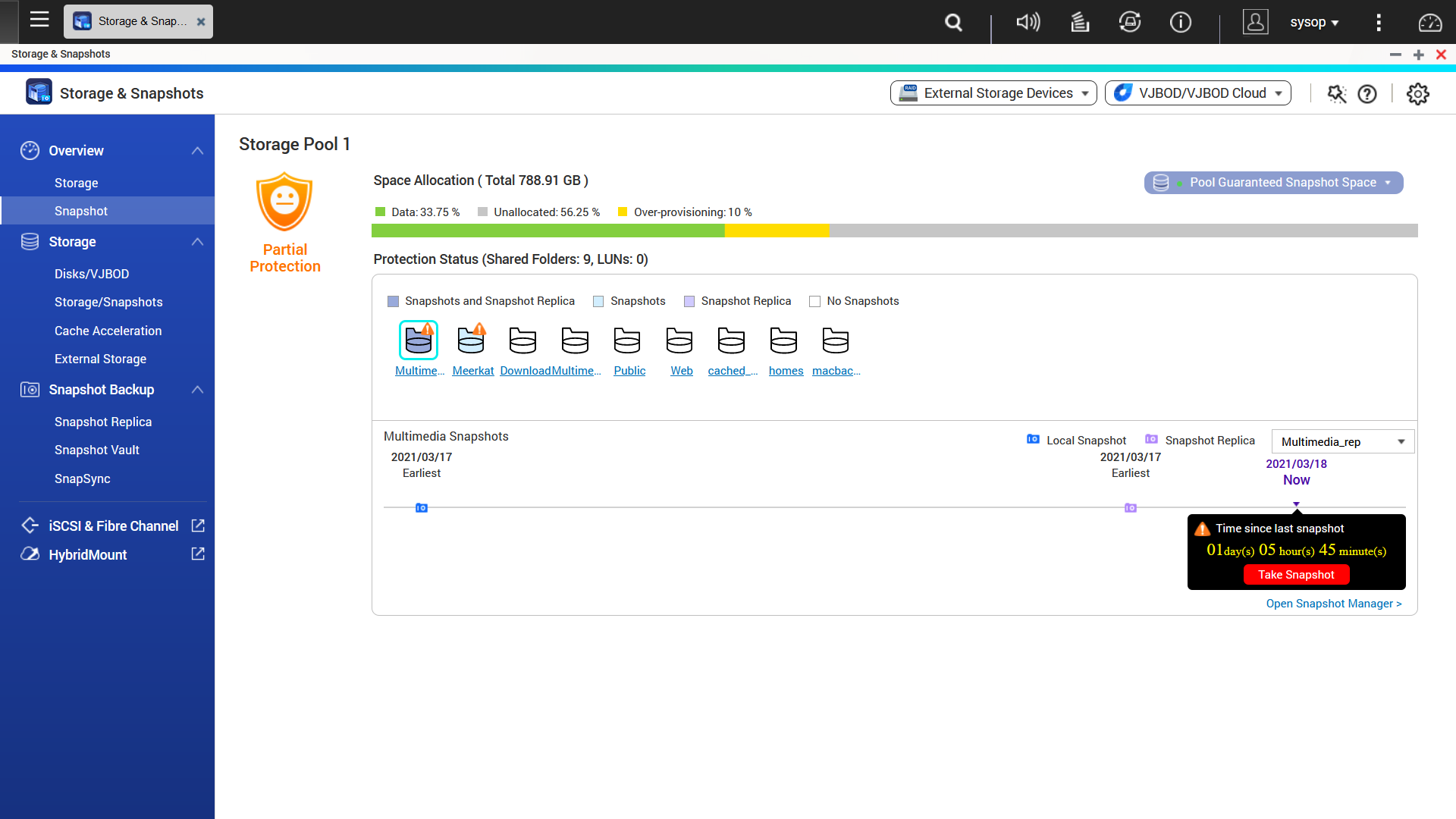
Snapshots can also help with some ransomware or file-corruption situations, but they are not a guarantee of recovery. If a NAS is compromised, or the device itself fails, snapshots stored on that same NAS may be affected or unavailable. That’s why they should support, not replace, separate backups.
Use local storage and cloud together
A NAS can offer convenient access to files on your local network. A cloud copy can provide another place to store important data, which may be useful if the NAS is stolen, damaged, or unavailable.
You don’t necessarily need to choose between a NAS and cloud storage. For many households and businesses, they do different jobs: the NAS provides a shared local storage point, while a scheduled cloud or off-site backup adds another layer of protection.
QNAP describes the 3-2-1 backup approach: keep three copies of important data, on two types of storage, with one copy off-site. The details of a suitable plan depend on the amount and type of data you have.
Stream your media around the home
A NAS can also hold music, photos, and video in a central library. With compatible apps, devices, and network connections, you may be able to stream that media to supported TVs or other devices around the home.

The experience depends on factors such as your NAS model, network performance, file formats, and the devices you use. If media streaming is a priority, it’s worth choosing and configuring the storage and network setup around those needs.
For a family, this can make it easier to organise shared media rather than keeping separate copies on several computers or drives. For a business, the NAS may instead be focused on shared documents, project files, or other work data.
Choose a setup that fits your needs
A useful QNAP setup starts with a few practical questions:
- How much data do you need to store now, and how quickly is it growing?
- Which computers and devices need automatic backups?
- Who needs access to shared folders?
- Do you want to store or stream media?
- Where will the additional off-site or cloud copy be kept?
The NAS model, drive capacity, folder permissions, backup schedule, and off-site option should all suit your situation. Storage arrangements such as RAID may help a NAS continue operating if a drive fails, depending on the configuration, but RAID is not a backup. It does not by itself protect against accidental deletion, ransomware, theft, or damage to the entire unit.
It’s also sensible to keep the NAS updated, use strong account passwords, and avoid exposing its management interface directly to the internet unless there is a specific, properly secured reason to do so.
QNAP NAS setup on the Gold Coast
A QNAP NAS can make file storage and backups more manageable when it is configured around the way you use your devices. Monitoring Computers helps Gold Coast homeowners, families, and small businesses with QNAP NAS setup, backup planning, and media centre configuration.
If you’re comparing scattered USB drives, a cloud-only approach, or a shared network storage option, we can help you consider what fits your needs and set up a practical plan. Contact Monitoring Computers to discuss QNAP NAS setup Gold Coast support.